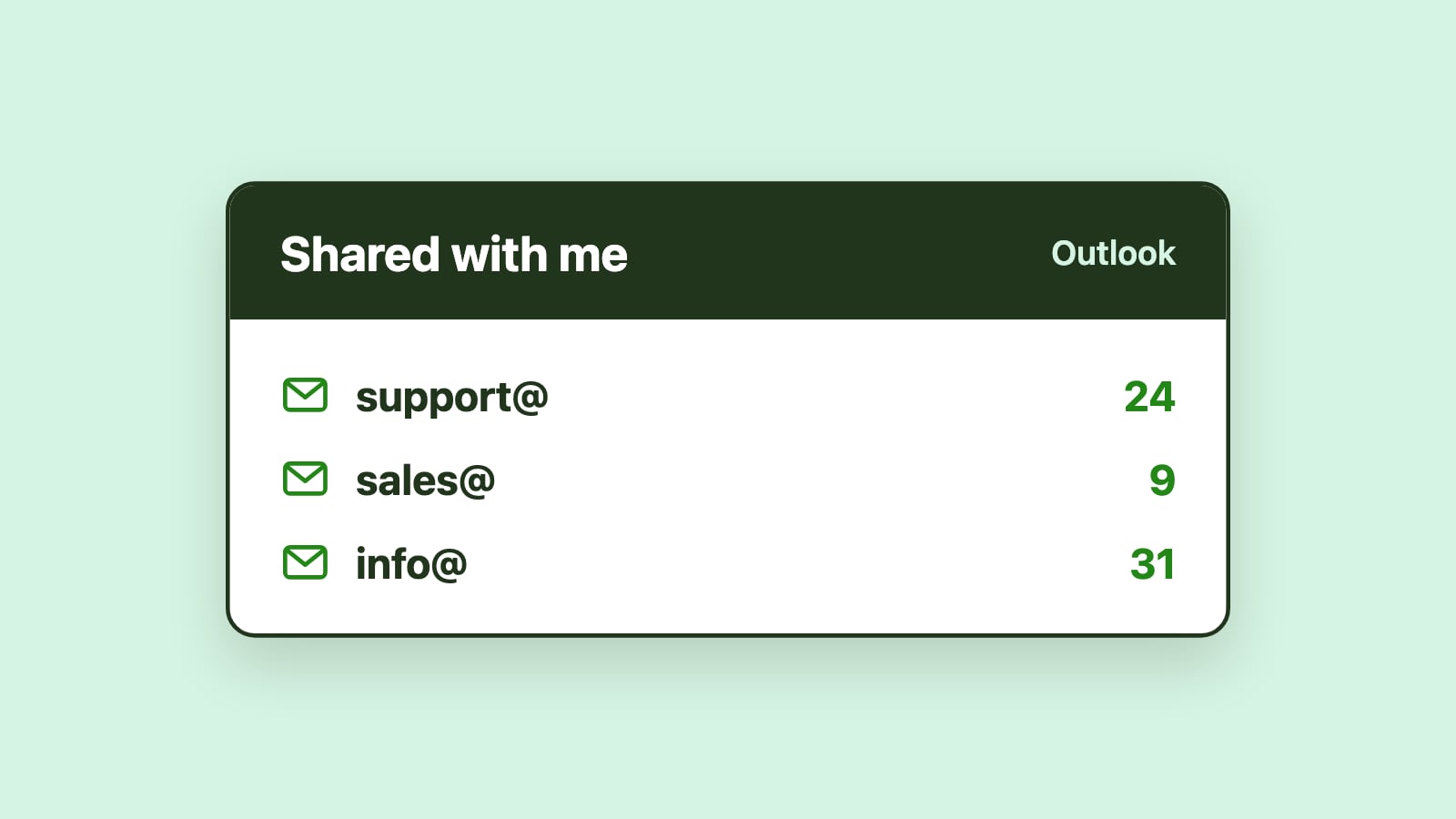
This guide is for teams and IT admins who run a shared mailbox (or shared inbox) in Microsoft 365 and want incoming email handled without someone triaging it by hand. It covers what routing and automation mean, where native Outlook tools help, where they fall short and what workflow-based automation adds while your team stays in Outlook.
Introduction
Outlook shared mailboxes are widely used by Microsoft 365 teams to manage group email addresses such as support@, info@, sales@, billing@ or operations@. As soon as more than one person is responsible for responding from a shared address, a practical question emerges: who should handle which messages?
In low-volume inboxes, teams often rely on informal habits. Someone checks the inbox, reads a message, flags what looks important and decides whether to respond or leave it for someone else. This approach can work temporarily, but it depends on constant vigilance and shared assumptions. As volume increases, those assumptions break down. Ownership becomes unclear, messages wait to be noticed, multiple people respond to the same email, response times vary depending on who happens to be online, and important requests are overlooked entirely. Teams spend more time scanning the inbox and less time resolving requests.
Automatic email routing and workflow automation address these predictable problems by applying logic to incoming messages before humans need to intervene. Instead of relying on scanning and guesswork, routing determines responsibility as soon as a message arrives. Importantly, this does not require turning email into tickets or forcing teams into a new interface. For many Microsoft 365 organizations, the goal is to stay inside Outlook while adding visibility, assignment, prioritization and measurable response expectations.
What email routing means in Microsoft 365
Email routing in Microsoft 365 refers to the process of directing incoming messages to the appropriate owner, queue or workflow based on defined criteria. It does not change how email is delivered; Microsoft 365 already handles that reliably. Routing governs what happens after delivery: who is responsible, how messages are grouped and which handling rules apply.
In shared mailboxes, routing is fundamentally about ownership and workflow. When routing is effective, responsibility is clear immediately, work begins sooner, and messages move through the inbox consistently rather than opportunistically.
What team inbox automation should achieve
Routing is the starting point for a broader goal: automating the team inbox so that messages move predictably from receipt to resolution. Team inbox automation uses rules, workflows and assignment logic to control how incoming messages in a shared mailbox are handled, instead of relying on manual scanning and ad hoc decisions.
In practical terms, automation exists to solve a handful of recurring problems:
- Clear ownership. Every message has an owner, so responsibility is never implied or assumed.
- Faster first responses. Teams don't spend time deciding who should act.
- Even workload. Work is distributed so the most attentive people are not overloaded while others remain idle.
- Consistency. Similar requests are handled the same way.
- Visibility. Managers can see backlog, workload and response behavior without guessing.
When these outcomes are in place, a shared mailbox stops being a passive container for messages and starts functioning like an operational workflow.
Why routing matters in shared mailboxes
Routing matters because it removes ambiguity. Without routing, teams must manually decide who should respond to each message, and that decision step introduces delay. At higher volume, even short delays compound into missed messages and uneven response times.
Shared mailboxes often receive a mix of requests that vary by topic, urgency and required expertise. Billing questions, support issues, sales inquiries and operational requests may all arrive in the same inbox. Routing allows teams to handle this complexity systematically, rather than relying on whoever happens to be watching the inbox at the right moment.
By assigning responsibility early, routing also reduces duplicate responses and unnecessary inbox scanning. Team members no longer need to constantly check whether something has been handled; the system makes that visible.
Native routing and automation options in Microsoft 365
Most teams begin with native tools. These can help with organization, but they are limited when it comes to coordinating team-based work.
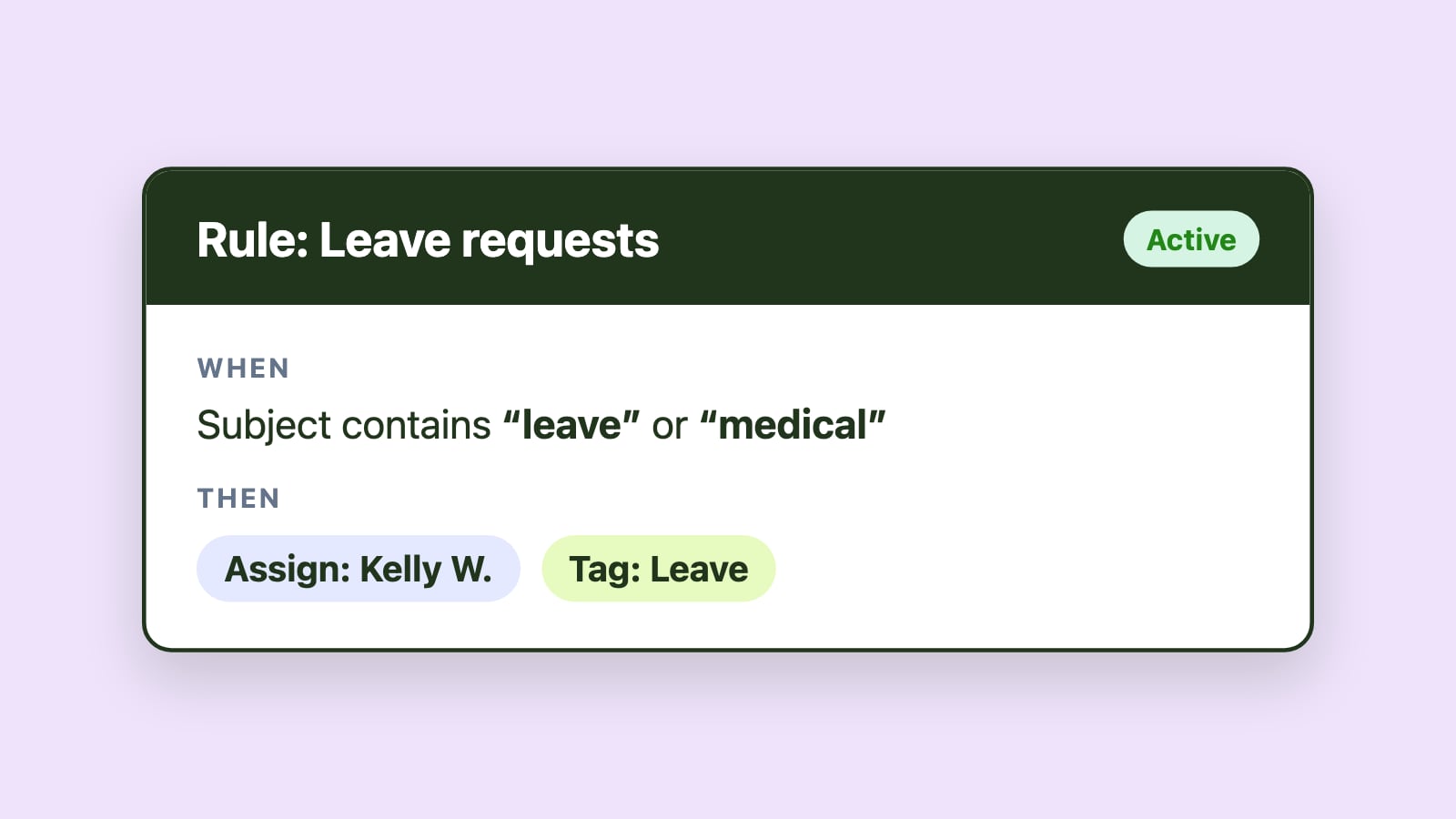
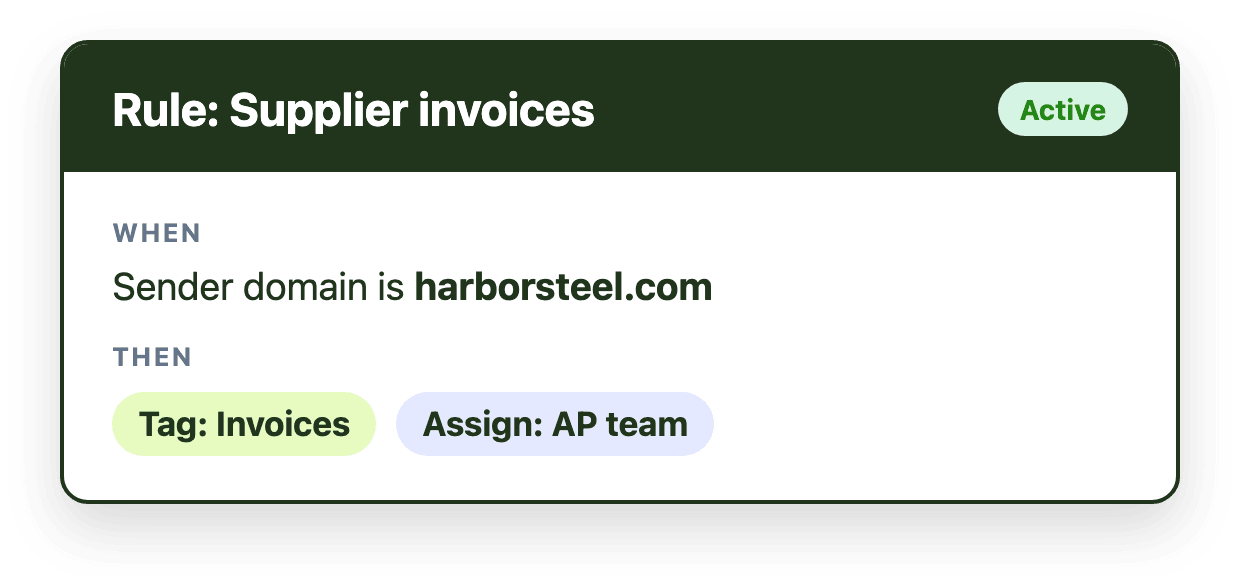
Outlook rules. Outlook rules can move messages to folders, apply categories, flag emails or forward them based on conditions such as sender, subject line or keywords. For simple sorting, rules are useful and familiar. In shared mailboxes, however, they quickly show their limits. They do not assign ownership, they do not balance workload, they do not track response-time expectations, and their effects are often invisible to other users depending on client or configuration. A message moved by a rule may be "organized" but still unowned, waiting for someone to notice it. As routing logic becomes more complex, rules also become harder to maintain and audit.
Categories and flags. These provide visual signals, but they depend entirely on consistent human behavior. As volume rises, categories are applied inconsistently or forgotten altogether, which reduces trust in the system.
Folders. Folders are designed for storage, not work. Moving a message to a folder does not indicate progress or resolution, and folder-based workflows often create a false sense of control.
Native tools can help organize messages, but they do not reliably coordinate shared work.
When native tools stop being enough
Most teams reach a point where organizing messages is no longer the main challenge. The real problem becomes coordinating work across people and time.
Native tools typically stop being sufficient when:
- more than one or two people actively work the mailbox
- response time matters to customers or internal stakeholders
- volume fluctuates throughout the day or week
- the same inbox supports multiple workflows, such as support, billing and sales
At this stage, familiar failure modes appear: duplicate replies, missed emails, uneven workload and rising coordination overhead. The requirement shifts from "sorting messages" to "managing responsibility."
Folder-based routing versus workflow-based routing
A key distinction in email routing is whether messages are routed to storage locations or to responsibility models.
Folder-based routing sends messages into folders and assumes that the right person will notice and act. At higher volume, this assumption fails. Folders fragment visibility and make it difficult to see all unresolved work in one place. Messages can be filed away without being handled, creating a false sense of progress.
Workflow-based routing, by contrast, focuses on the lifecycle of work rather than the location of messages. Instead of asking where an email should go, it asks who owns it, what state it is in and what needs to happen next. Messages are assigned to owners or queues, and routing decisions are visible, auditable and tied to accountability. Queue-based handling replaces folder-based organization with a visible list of active work: messages remain visible until they are resolved, which makes backlog and status clear to the entire team and reduces the risk that work disappears into folders during busy periods. For teams managing shared mailboxes at scale, workflow-based routing is far more reliable.
How routing logic typically works
Automatic routing relies on predictable signals rather than ad hoc judgment. Common signals include who the sender is, what the message is about, keywords, whether there is prior context with the sender, and who is currently available to work.
In practice, effective routing usually combines several signals. For example, a message might be routed based on topic, but adjusted based on current workload or prior ownership. The goal is not perfect classification, but consistent, defensible assignment that reduces decision-making friction. Automated assignment is usually the foundation: once a message is routed to a specific owner, it is no longer just "in the inbox"; it is owned.
Routing and response-time improvement
Routing has a direct impact on response time because it determines when work actually starts. When messages sit unassigned, response clocks effectively do not begin. Automatic routing shortens this gap by assigning ownership immediately, eliminating manual triage and reducing the need for inbox scanning.
Routing alone does not guarantee fast responses, but it removes one of the most common sources of delay: uncertainty about responsibility. Once ownership is clear, response-time expectations can be applied and measured more effectively. Workflow automation tracks how long messages have been waiting and surfaces those that have waited longest or exceeded expectations, so teams can prioritize objectively instead of reacting to whatever happens to be newest in the inbox.
Automating without leaving Outlook
A common concern is that automation means adopting a ticketing system and asking teams to abandon Outlook. For many Microsoft 365 organizations, this creates unnecessary friction and slows adoption.
Routing answers the question "who should handle this?" Shared mailbox management ensures that the answer is visible, enforced and measurable through ownership, queue-based work handling and response-time awareness. Outlook-native approaches extend shared mailboxes with assignment logic, queue visibility and performance tracking while preserving familiar email workflows. Teams continue reading, replying and collaborating inside Outlook, but with structure layered on top.
Emailgistics is a Microsoft 365-native shared mailbox management platform that automates email assignment, workflow routing, SLA tracking and analytics inside Outlook, allowing teams to scale shared inbox operations without changing how they work day to day.
Common automation outcomes for Outlook teams
Teams typically automate shared mailboxes to achieve a small number of operational goals. They want every message assigned immediately, routing that reflects different request types, balanced workload across shifts or regions, clear visibility into which messages have waited longest, and reliable insight into backlog and throughput over time.
These outcomes are less about adding features and more about ensuring consistent execution under real-world conditions.
When routing logic needs to evolve
Routing logic is rarely static. Teams often start with simple rules and evolve as volume increases, team size changes or workflows diversify. The challenge is finding the right balance. Overly complex routing can become brittle and hard to maintain, while insufficient routing shifts the burden back to humans.
Regular review of routing effectiveness helps teams adjust logic without overengineering. The goal is consistent ownership with minimal friction.
What routing does not replace
Routing does not eliminate the need for human judgment in ambiguous cases, nor does it replace accountability, response-time expectations or performance measurement. It determines where work begins, not how it is completed. Effective teams treat routing as a foundation, not a full solution.
Conclusion
Automating an Outlook team inbox in Microsoft 365 is about replacing informal coordination with repeatable workflow, and automatic routing is where that starts. Native tools such as rules, categories and folders help with organization, but they do not reliably create ownership, balance workload or provide time-based accountability. Workflow-based routing and automation add assignment, queue visibility and response-time awareness, so teams can scale shared mailbox operations while staying inside Outlook. For the next step, see how to fit routing into a broader shared mailbox workflow design, and where email workflow automation in Microsoft 365 is heading.